We're often asked how app users log into the app, as they don't have an email or password?
In order for your app users to login, you need to have created your company login. To create a company login, follow the steps below:
1. Log into the My Operations dashboard with your admin username and password.
2. Navigate to the 'Admin Users' tab and click on 'Add Admin User'.
3. Create the new admin user by inputting the email address and other relevant information. When choosing what access this user requires, it is important to ensure that the 'Shared Company Login (No Admin Access)' toggle is selected. Then choose whether this shared company login should be usable for My ePCR, My Dispatch or both.
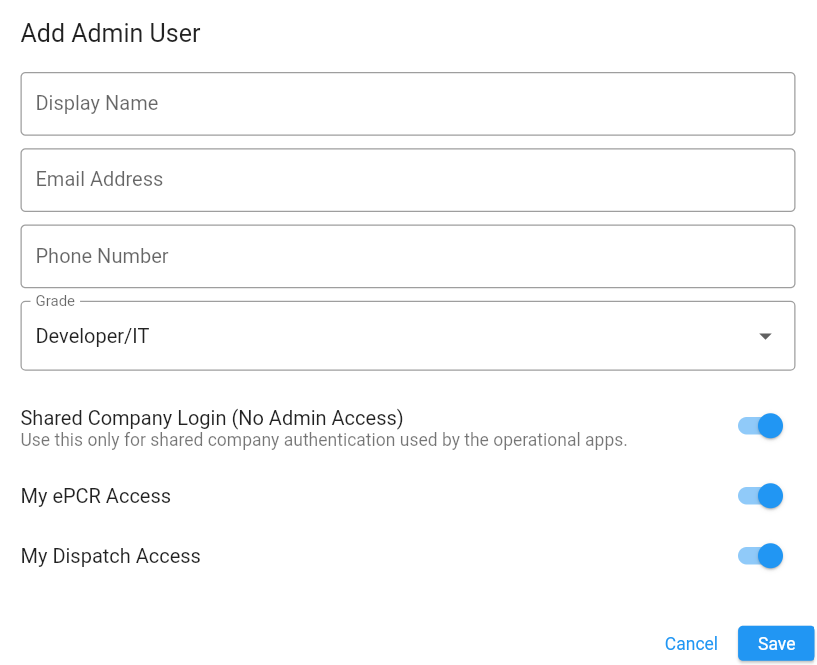
By disabling the 'Shared Company Login (No Admin Access)' toggle, this will give you the option to allow My Operations Access which if enabled, will allow this user to access this operations portal.4. Once you have clicked 'Save', the user will be created and a password reset link will be sent to the email address you just used to create the user.
5. Acess the email inbox for the email address you have just used and set the password for this company login by clicking the link in the email (as mentioned above in step 4).
6. Now the company login has been setup, you have 2 options:
OPTION 1 - This login (email address and password) can be shared amongst your app users, so they can authenticate the company, prompting them to log in with their own username and pin number.
By choosing option 1, it gives app users the ability to use their own devices (and/or company devices) to submit records for the company.WE DO NOT RECOMMEND OR SUPPORT USING PERSONAL DEVICES FOR OUR SYSTEMS.OPTION 2 - The newly created company login credentials (email address and password) can remain known, only, to the people who need to know them.
By choosing option 2, this will limit app users to only using the devices that have been approved and logged in already by the company app admins.
Was this article helpful?
That’s Great!
Thank you for your feedback
Sorry! We couldn't be helpful
Thank you for your feedback
Feedback sent
We appreciate your effort and will try to fix the article